Connect Vimeo to Your Website
Create a Vimeo app, add your Client ID and Client Secret, and connect your church’s Vimeo account to your Digital Church website.
Connecting Vimeo lets your Digital Church website access videos in your church's Vimeo account. You'll create a small private "app" in Vimeo, copy two codes from it into your website, and then approve the connection. Vimeo's pages use developer terms, but you don't need to write any code. You also don't need to create a personal access token by hand for this connection.
The screenshots below use an example account and website address. Your names, codes, and web address will be different.
Before you begin#
- Log in to your Digital Church website as an administrator.
- Log in to Vimeo as the primary account holder for the account that holds your church's videos.
- Keep two browser tabs open: one for Vimeo and one for your website dashboard. You'll switch between them.
Step 1: Create a Vimeo app#
- Go to developer.vimeo.com and log in to Vimeo if it asks you to.
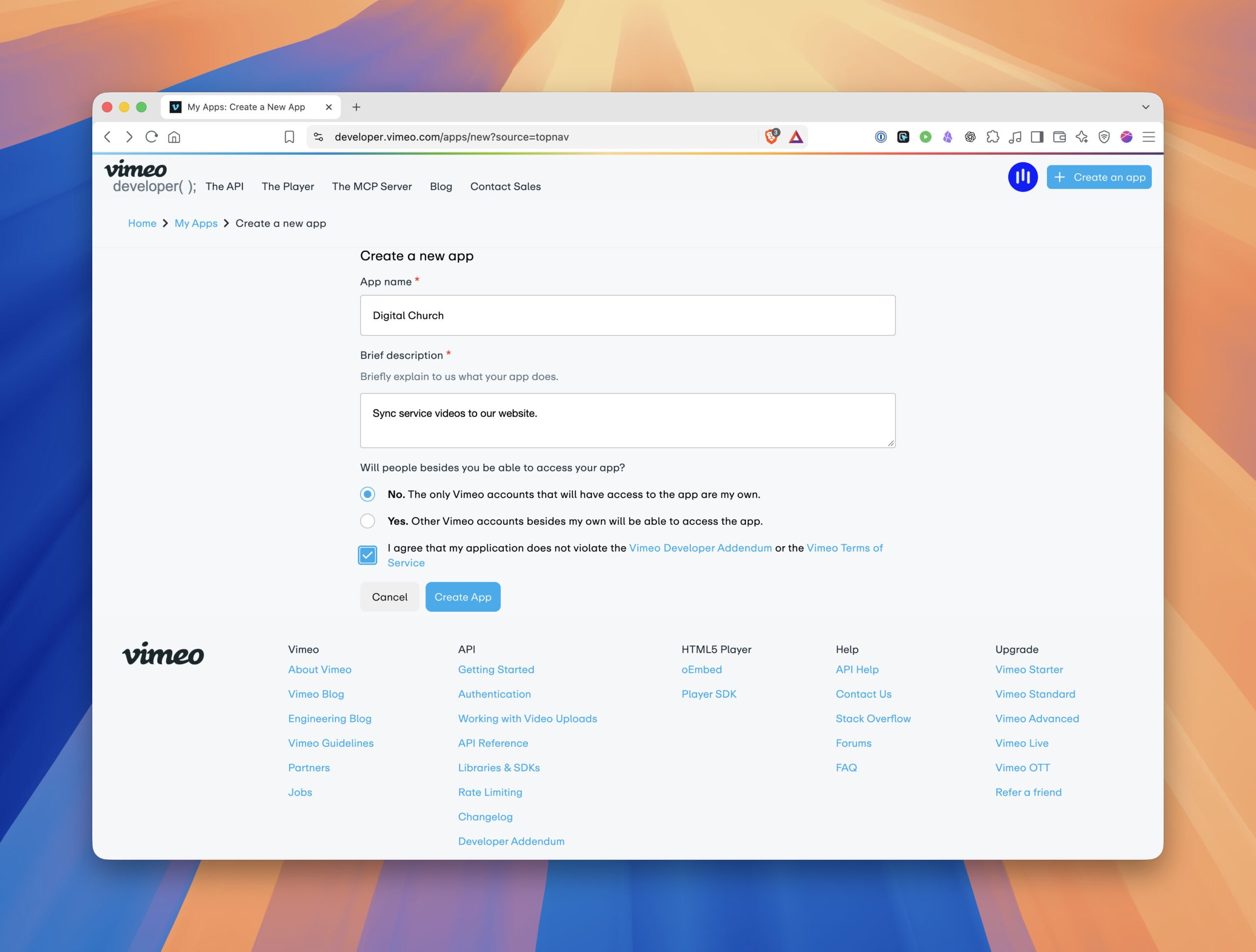
- Select + Create an app, or go directly to the new app form.
- Enter an app name you'll recognize, such as "Digital Church."
- Add a short description, such as "Sync service videos to our website."
- When Vimeo asks who will use the app, choose No. The only Vimeo accounts that will have access to the app are my own. This only means no other Vimeo accounts will use the app. It doesn't change whether visitors to your website can watch your videos.
- Check the box to agree to Vimeo's terms, then select Create App.
For more help, see Vimeo's guide: How to create an API app.

Fill in the app name and description, choose "No," agree to the terms, and select Create App.
Step 2: Find your Client ID#
After you create the app, Vimeo opens the app's page. Under General information, find the Client identifier. It has a copy icon next to it. You'll copy this value in Step 6, so leave this tab open.
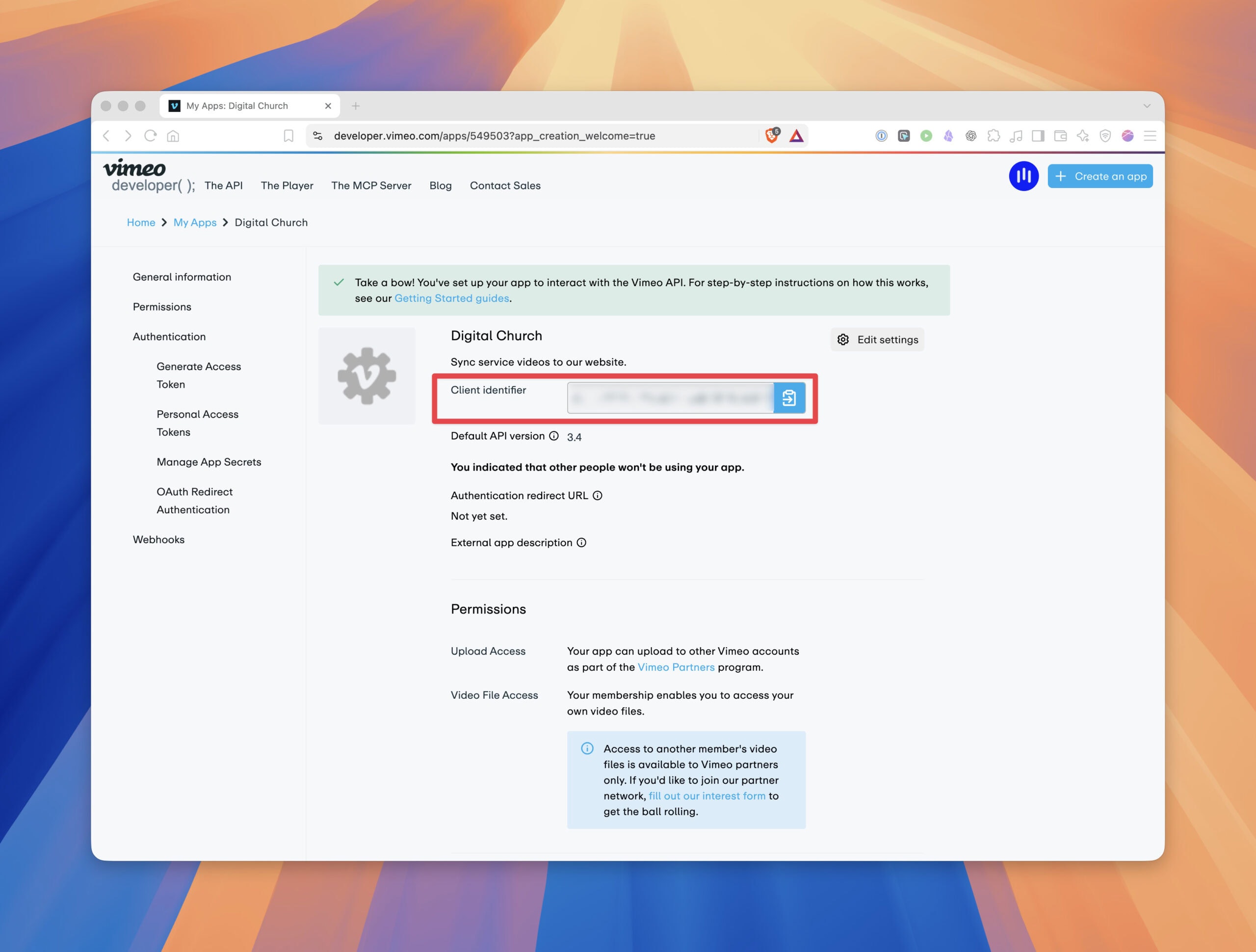
The Client identifier appears under General information.
Step 3: Find your Client Secret#
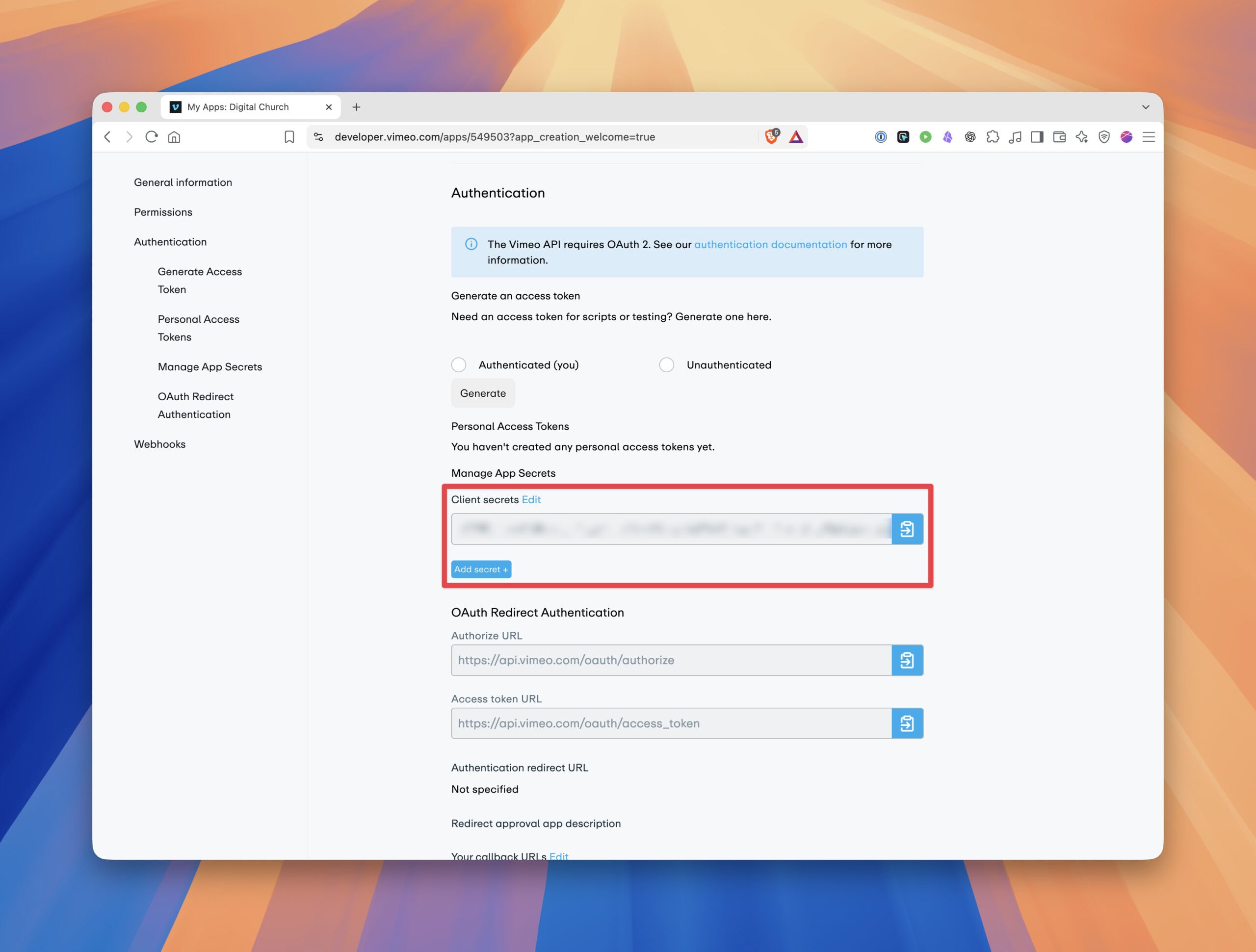
On the same app page, go to Authentication, then Manage App Secrets. Your secret is listed under Client secrets with a copy icon. Use the secret that's already there. You don't need to select Add secret +.

Your Client Secret is listed under Manage App Secrets.
Step 4: Copy the callback URL from your website#
- In your website tab, open your dashboard's Integrations page. It's usually under Settings > Integrations.
- Find Vimeo in the Video section.
- If Vimeo isn't set up yet, select Activate. If it's already active, open its settings.
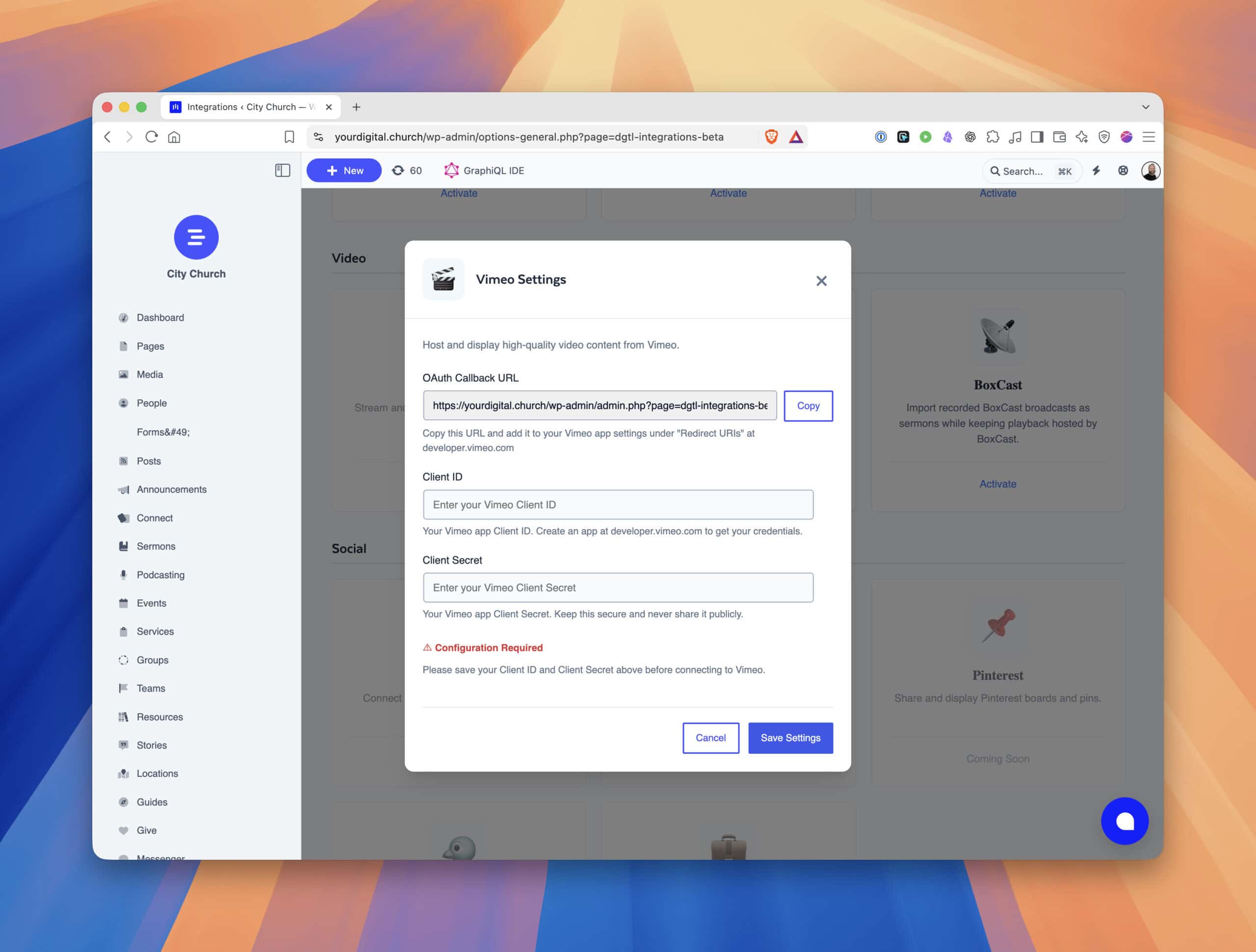
- In the Vimeo Settings window, find OAuth Callback URL and select Copy.
Use the Copy button instead of selecting the text yourself. The box may show only part of the address, and you need all of it. Copy the address from your own website, not the example shown here.

Select Copy next to OAuth Callback URL to copy your website's full address.
Step 5: Add the callback URL in Vimeo#
- Go back to the Vimeo tab. On your app page, go to Authentication, then OAuth Redirect Authentication.
- Under Your callback URLs, select Add URL +.
- Paste the address exactly as you copied it, including the https:// at the start and everything after the question mark. Don't add or remove anything.
- Save your changes.
Leave implicit authentication turned off. This page also shows other addresses, such as the Authorize URL, Access token URL, and Authentication redirect URL. Leave those alone. You only need the Your callback URLs list.
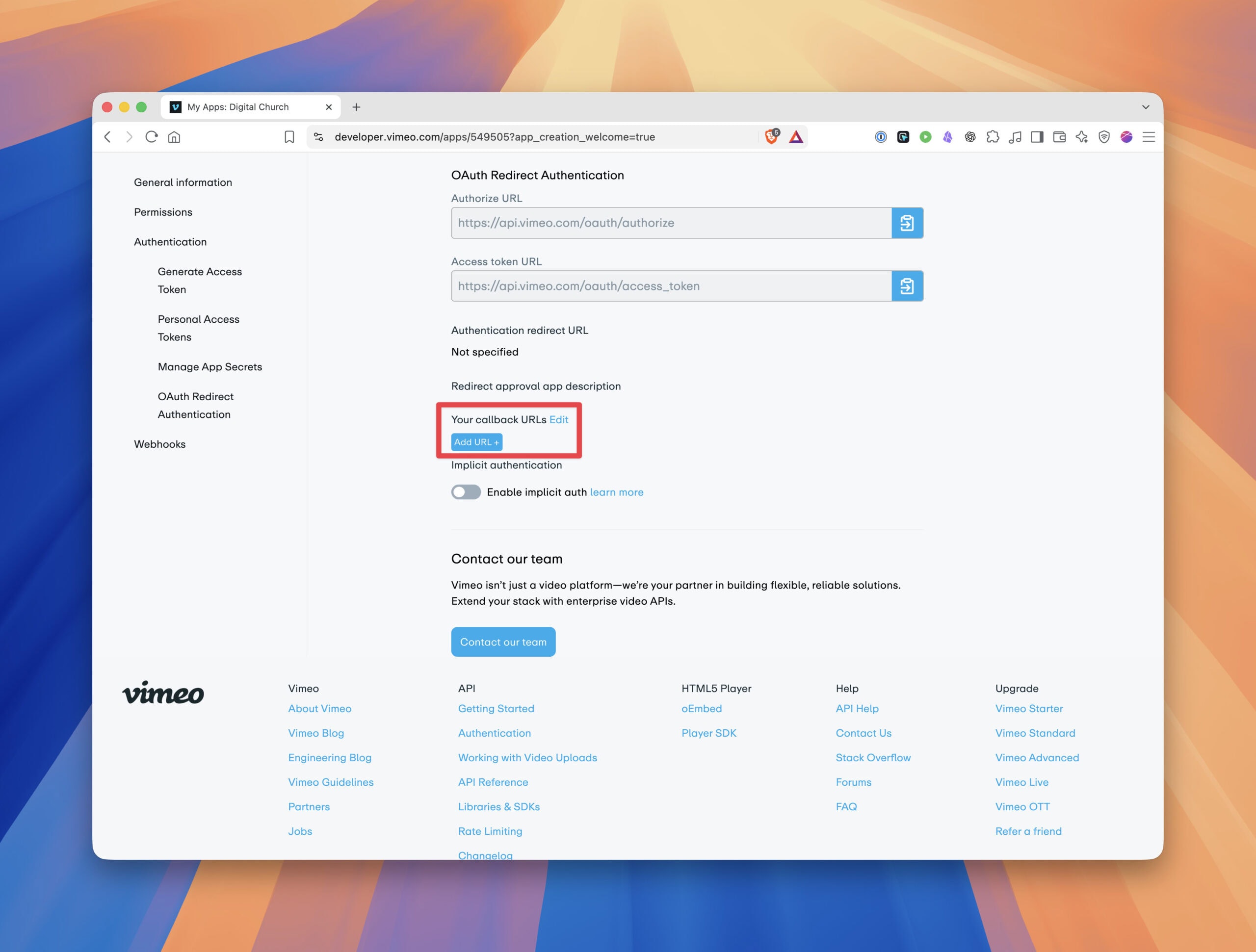
Add your website's callback URL under Your callback URLs.
Step 6: Save your codes and connect#
- In Vimeo, copy the Client identifier. On your website, paste it into the Client ID field.
- In Vimeo, copy the value under Client secrets. On your website, paste it into the Client Secret field.
- Select Save Settings.
- Saving stores your codes, but it doesn't connect your website yet. Reopen the Vimeo settings if you need to, then select Connect to Vimeo.
- A Vimeo window opens and asks you to approve access to your account's public and private content. Approve it.
- Once the connection works, the status shows Connected with the name of your Vimeo account.
Troubleshooting#
- Vimeo says the redirect or callback URL doesn't match. The address in Vimeo has to match your website's address exactly. Copy it again with the Copy button and replace the one in Your callback URLs. Vimeo's authentication documentation explains this requirement.
- The connection fails after you approve it. Check that the Client ID and Client Secret both came from the same Vimeo app.
- Nothing happens when you select Connect to Vimeo. Make sure you selected Save Settings first.
- The approval window never appears. Your browser may be blocking pop-ups. Allow pop-ups for your website and try again.
- The status shows the wrong Vimeo account. Make sure you were logged in to the Vimeo account that holds your church's videos when you created the app and approved access.
Keep your Client Secret private#
Treat your Client Secret like a password. Paste it only into your website's Vimeo Settings, and don't share it in email, chat, or screenshots. If you contact Digital Church support for help, describe the problem or send a screenshot with the secret hidden. Never email the secret itself.