Cloudflare Invitation
If you manage your domain DNS records in Cloudflare, you may need to add an invitation to the Digital Church team. This guide will show you how to do that. 1. Log into Cloudflare Account Log into your Cloudflare account. If you have multiple account access, select the account you want to add the invitation...
If you manage your domain DNS records in Cloudflare, you may need to add an invitation to the Digital Church team. This guide will show you how to do that.
1. Log into Cloudflare Account#
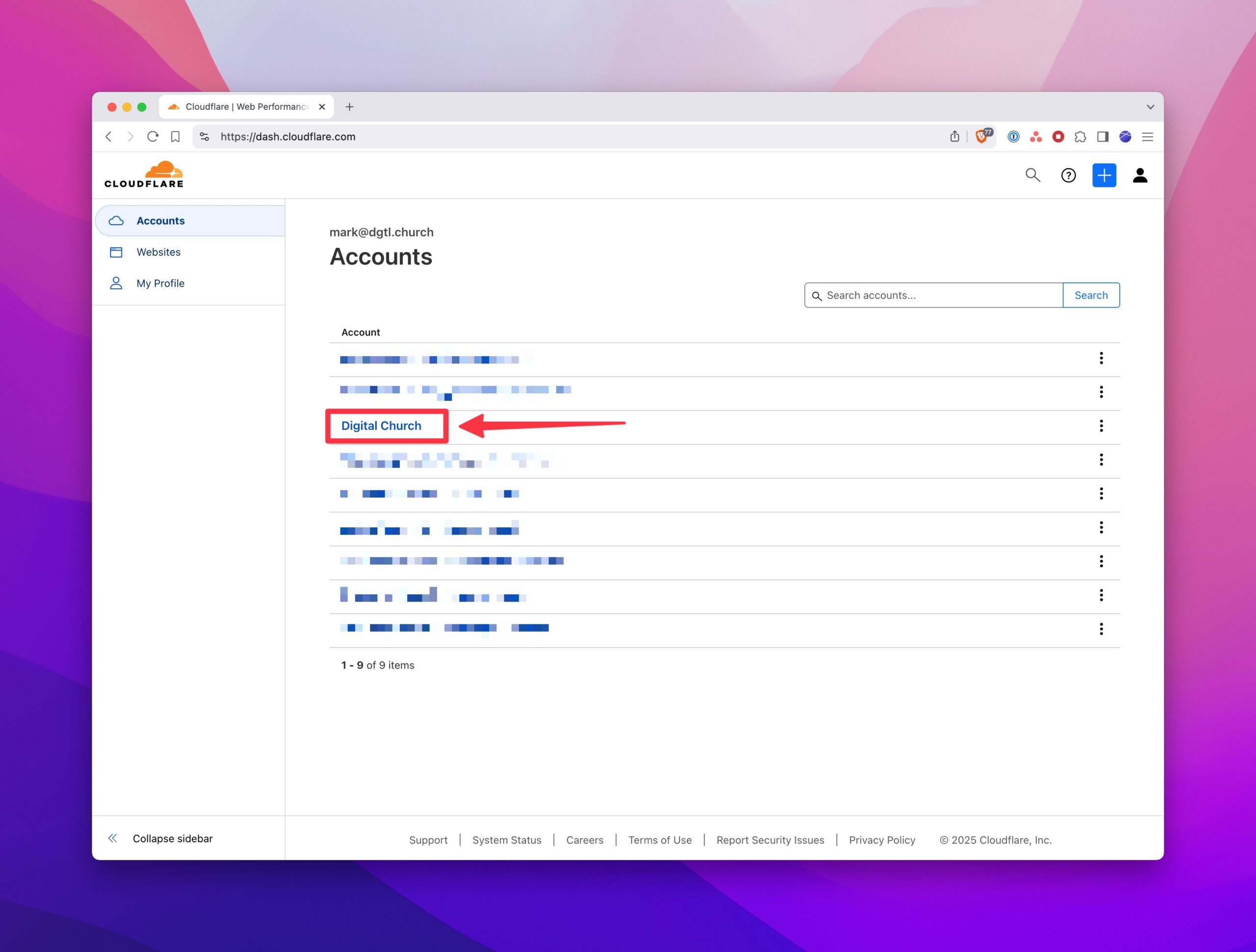
Log into your Cloudflare account. If you have multiple account access, select the account you want to add the invitation to.
2. Select Manage Account > Members#
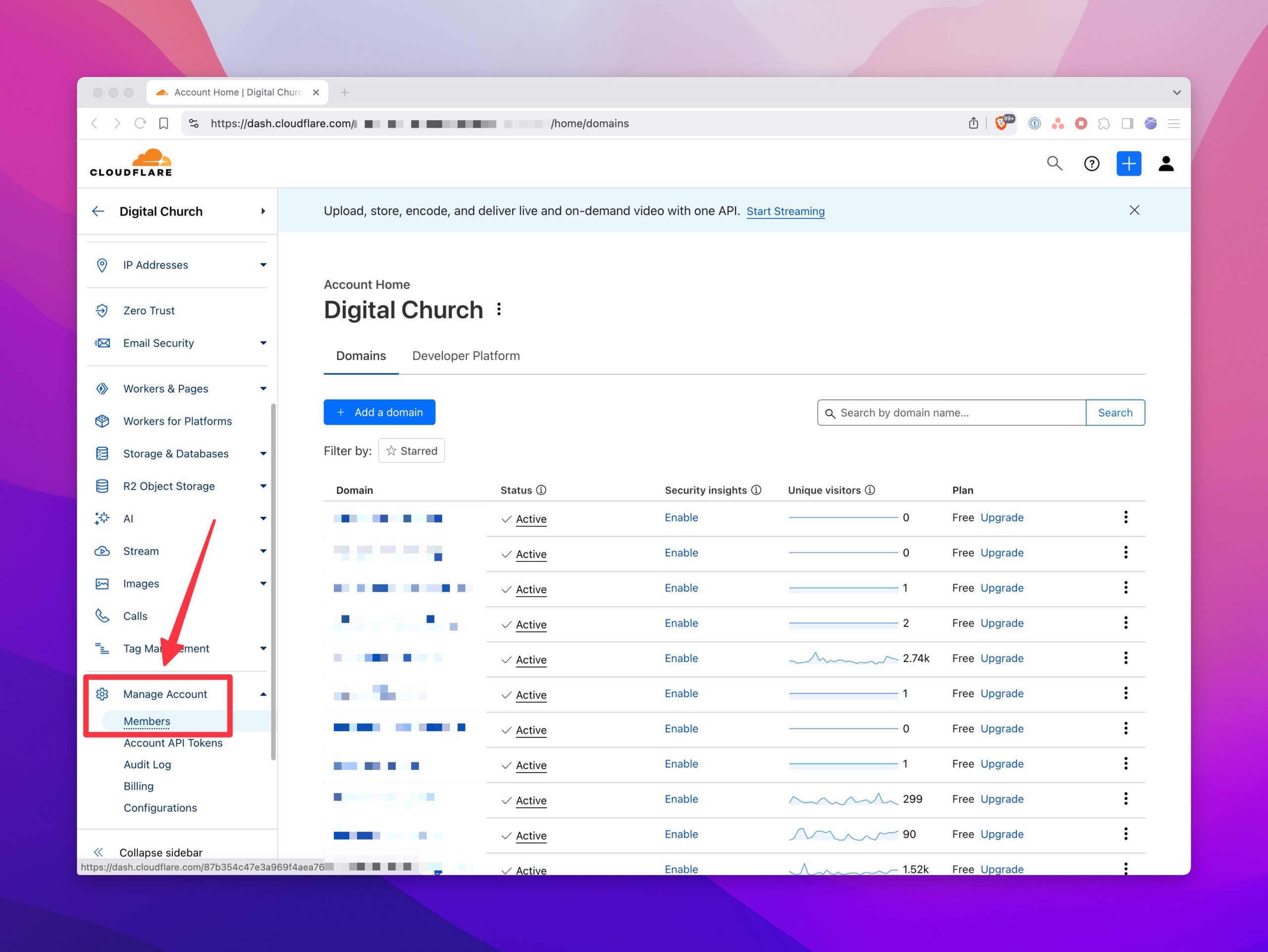
In the left sidebar, select Manage Account > Members.
3. Select the Invite Button#
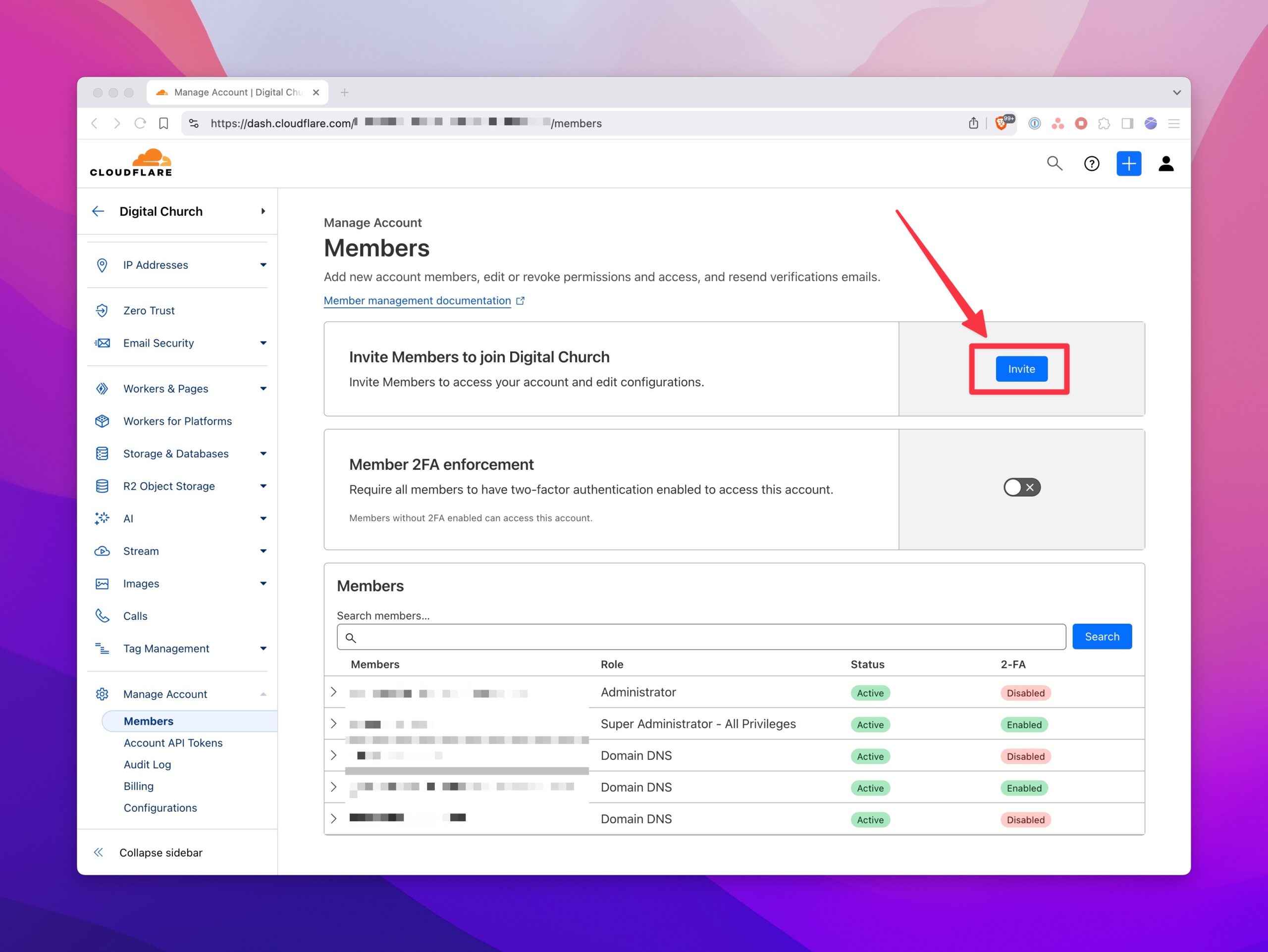
Select the Invite button.
4. Enter the Email Address#
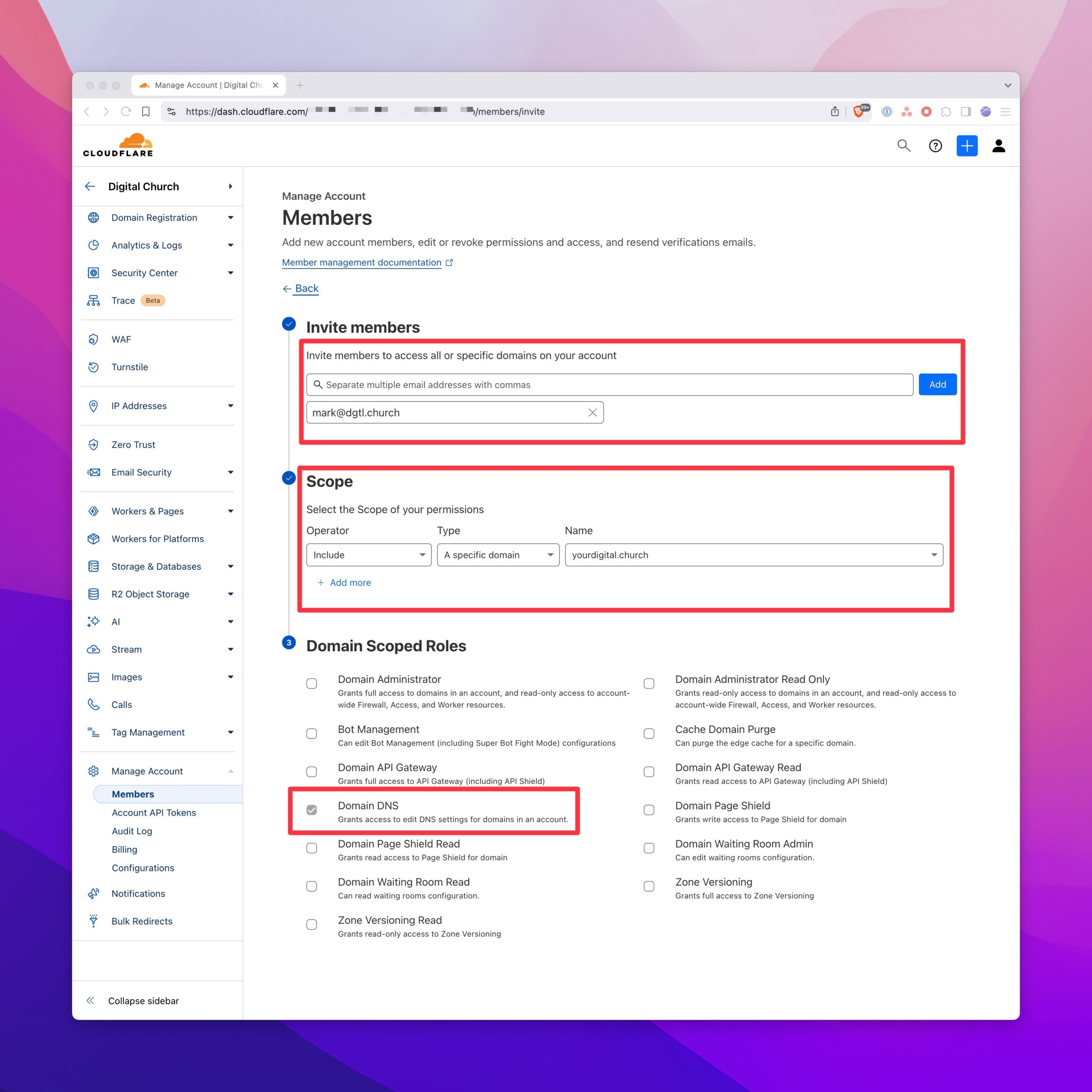
Enter the email address of the person you want to invite. If you are inviting the Digital Church team, use the email address mark@digitalchurch.com. Set the scope to include the domain you want to invite them to. Be sure to check the box to allow the user to manage the domain DNS records.
5. Continue to Summary & Invite#
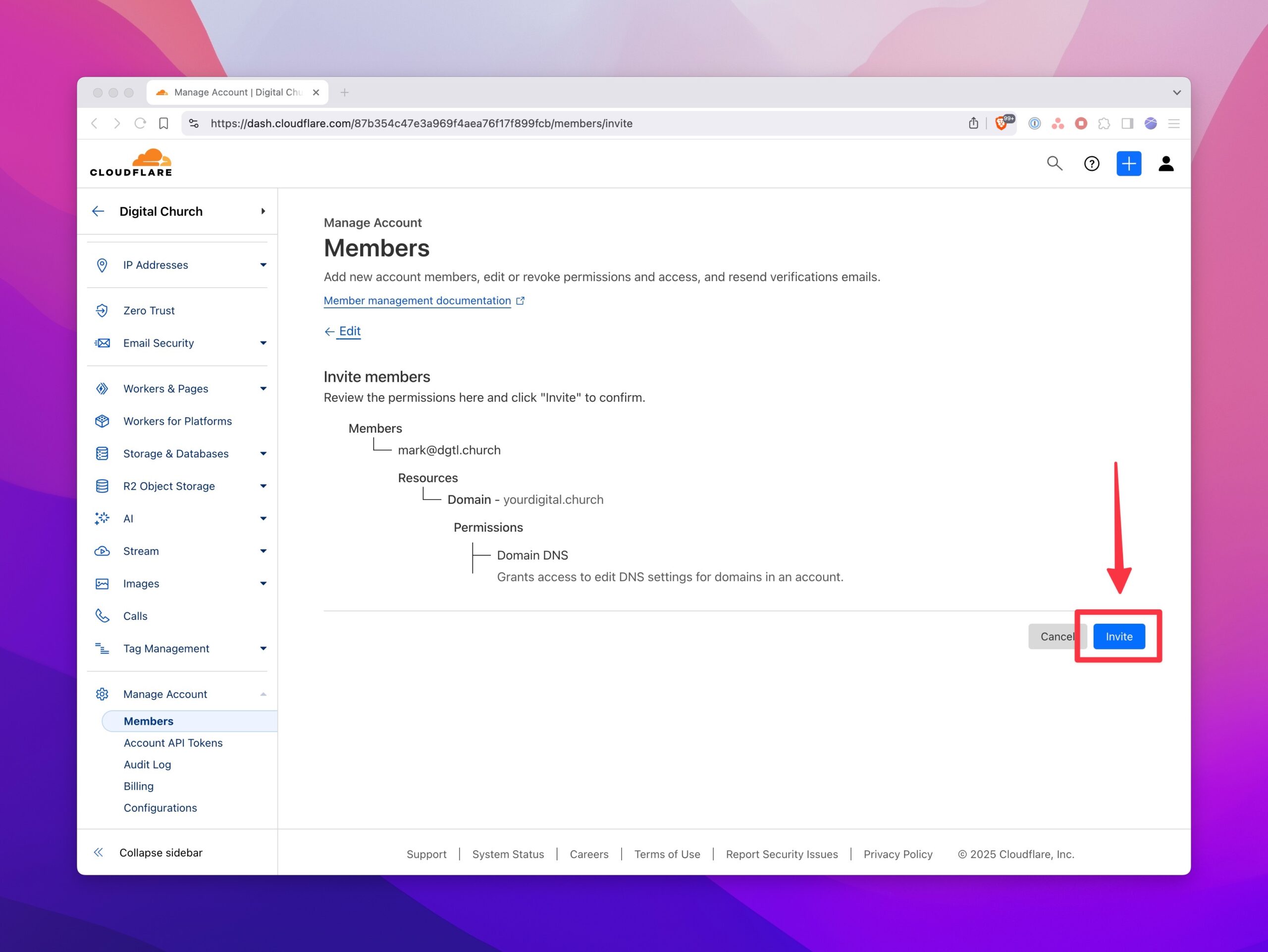
Continue to the summary page and select Invite.