Sync Entries to Google Sheets
If you need to share form data with other people, a great approach is to sync the entries with Google Sheets and then share the spreadsheet with anyone who needs the data. This is great for event registrations in particular. Activate GP Google Sheets This add-on is available as part of our Gravity Perks license....
If you need to share form data with other people, a great approach is to sync the entries with Google Sheets and then share the spreadsheet with anyone who needs the data. This is great for event registrations in particular.
Activate GP Google Sheets#
This add-on is available as part of our Gravity Perks license. If you don’t see Forms > Perks in the admin menu, you may need to activate Gravity Perks first.
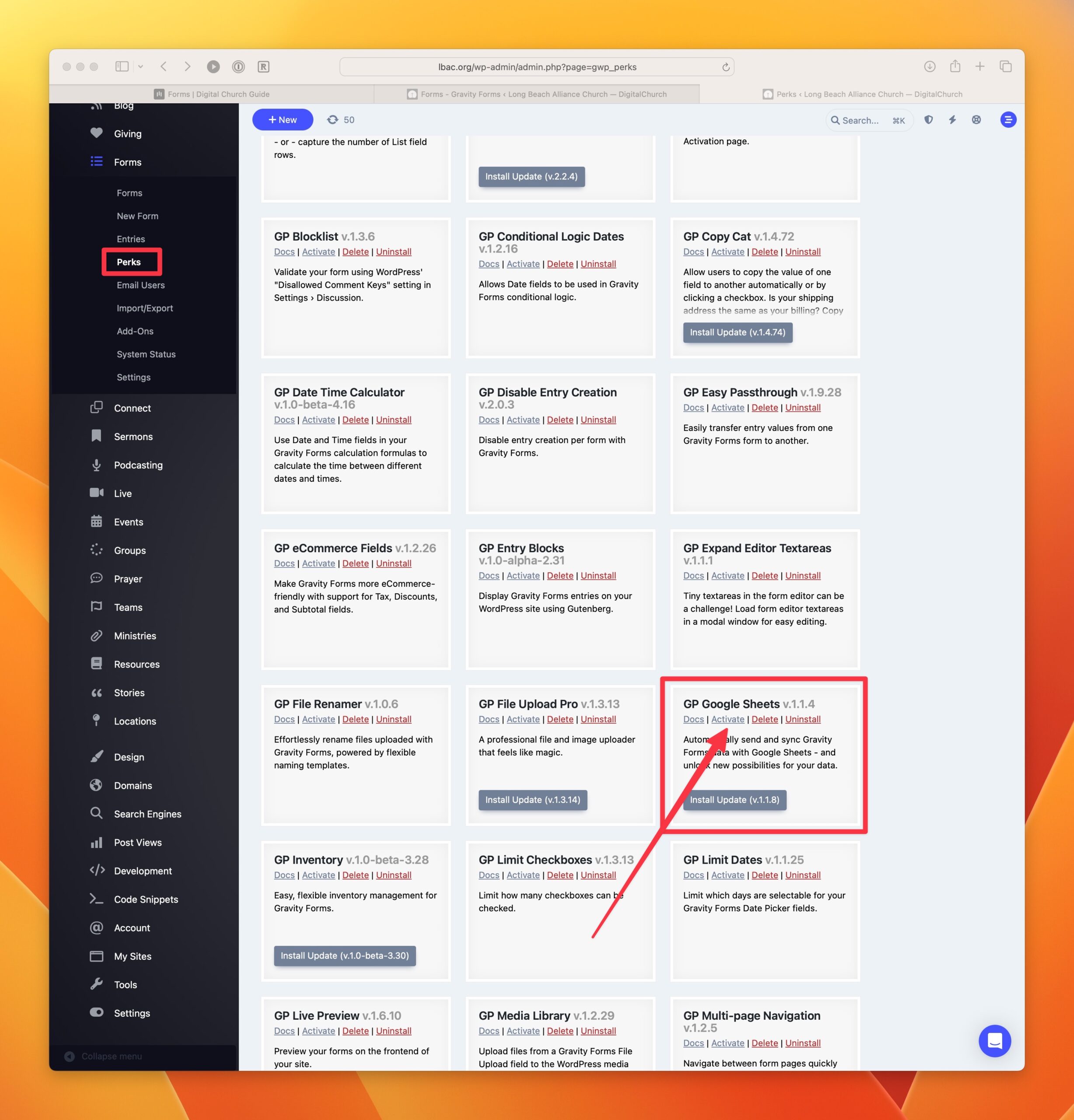
- In the admin dashboard, go to Forms > Perks.
- Click on Activate. If activation fails, activate it via Settings > Plugins
Authorize your Google Sheets Account#
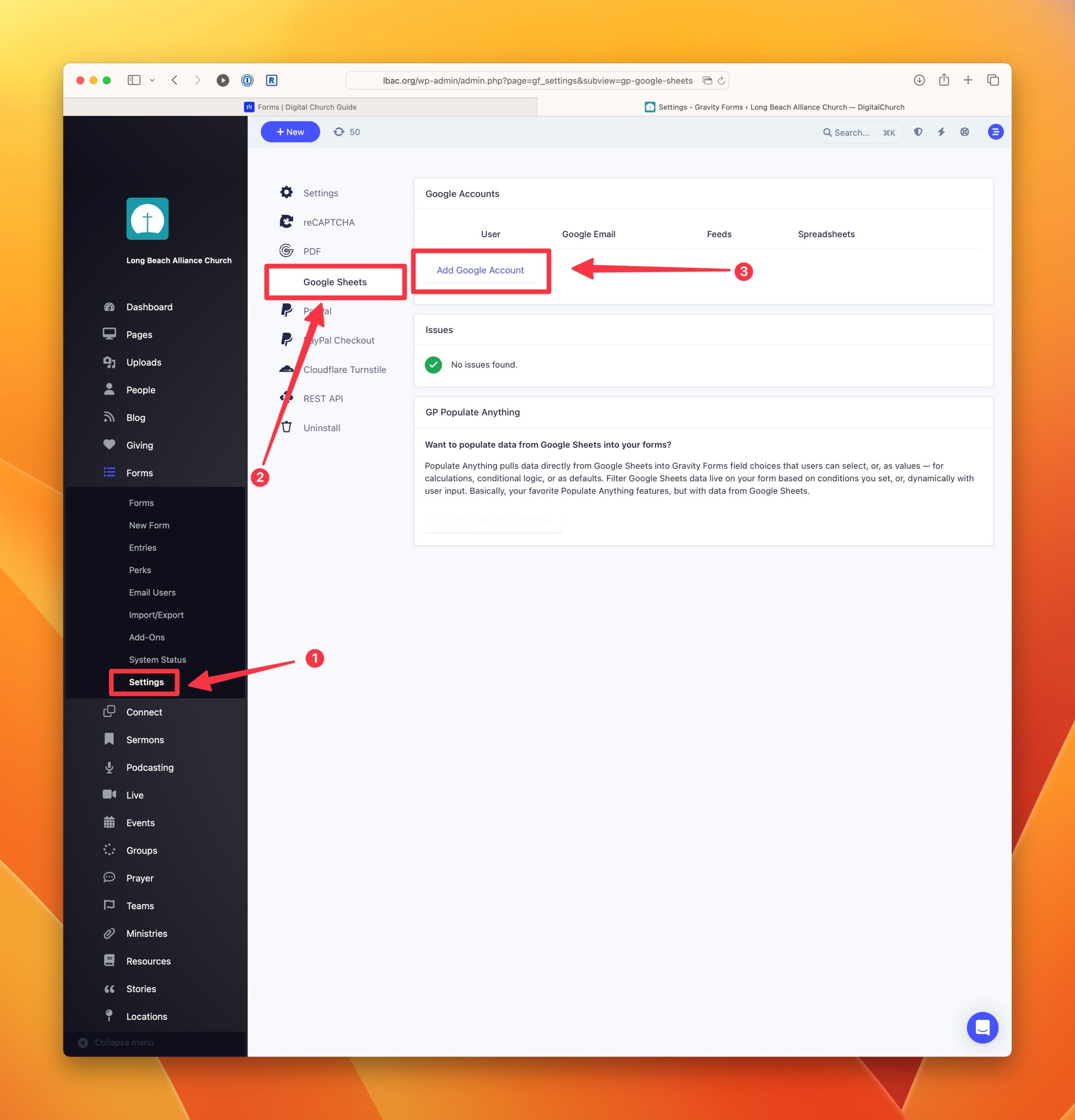
Go to Forms > Settings > Google Sheets and click the Add Google Account button. Follow the process to give permission in your Google account.
Edit Form Google Sheets Feeds#
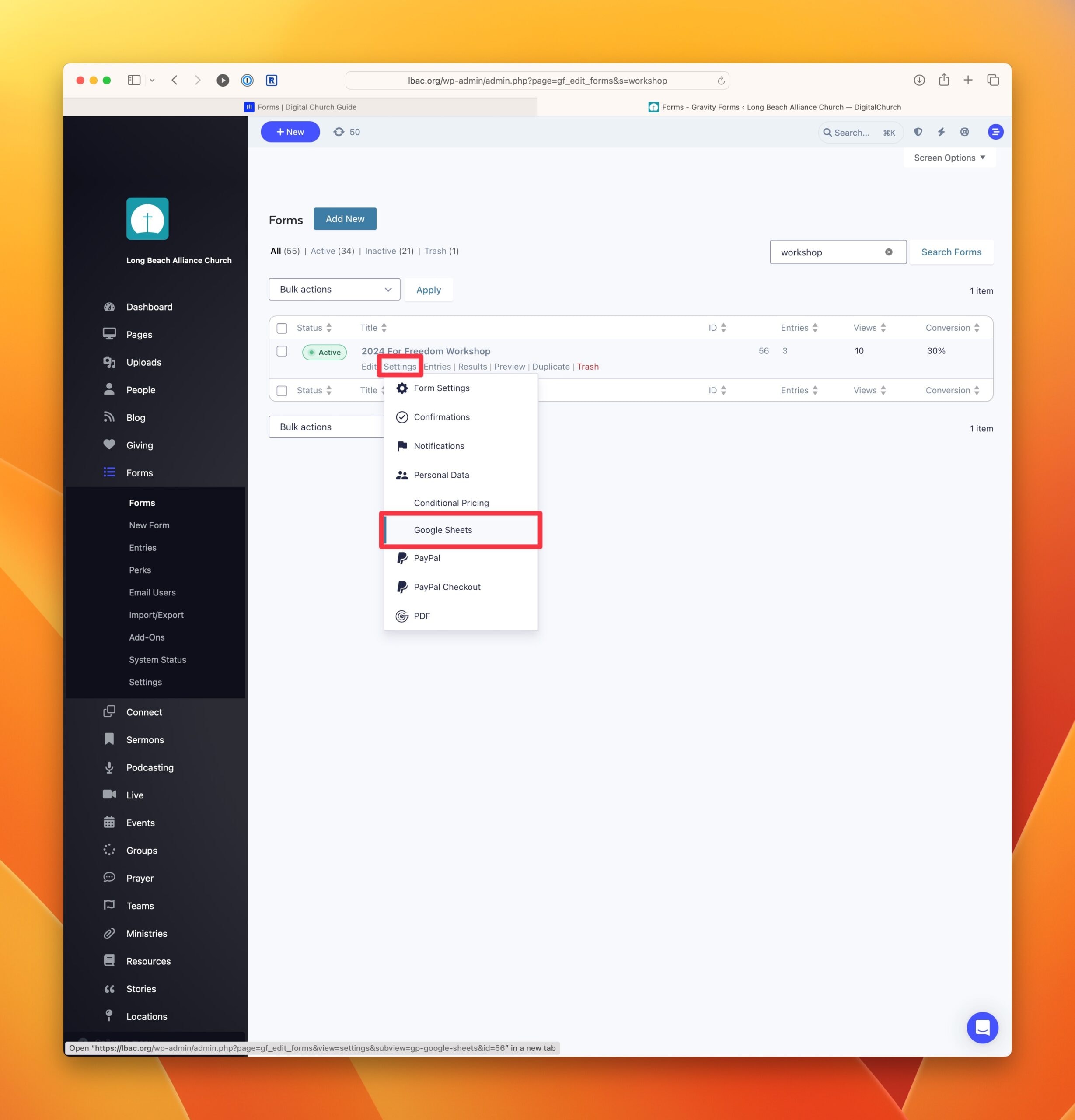
In the forms listing in Dashboard > Forms, find the form you want to keep in sync. Hover over the edit link below the form you wish to edit. Select "Google Sheets" from the dropdown menu.
Add a New Feed#
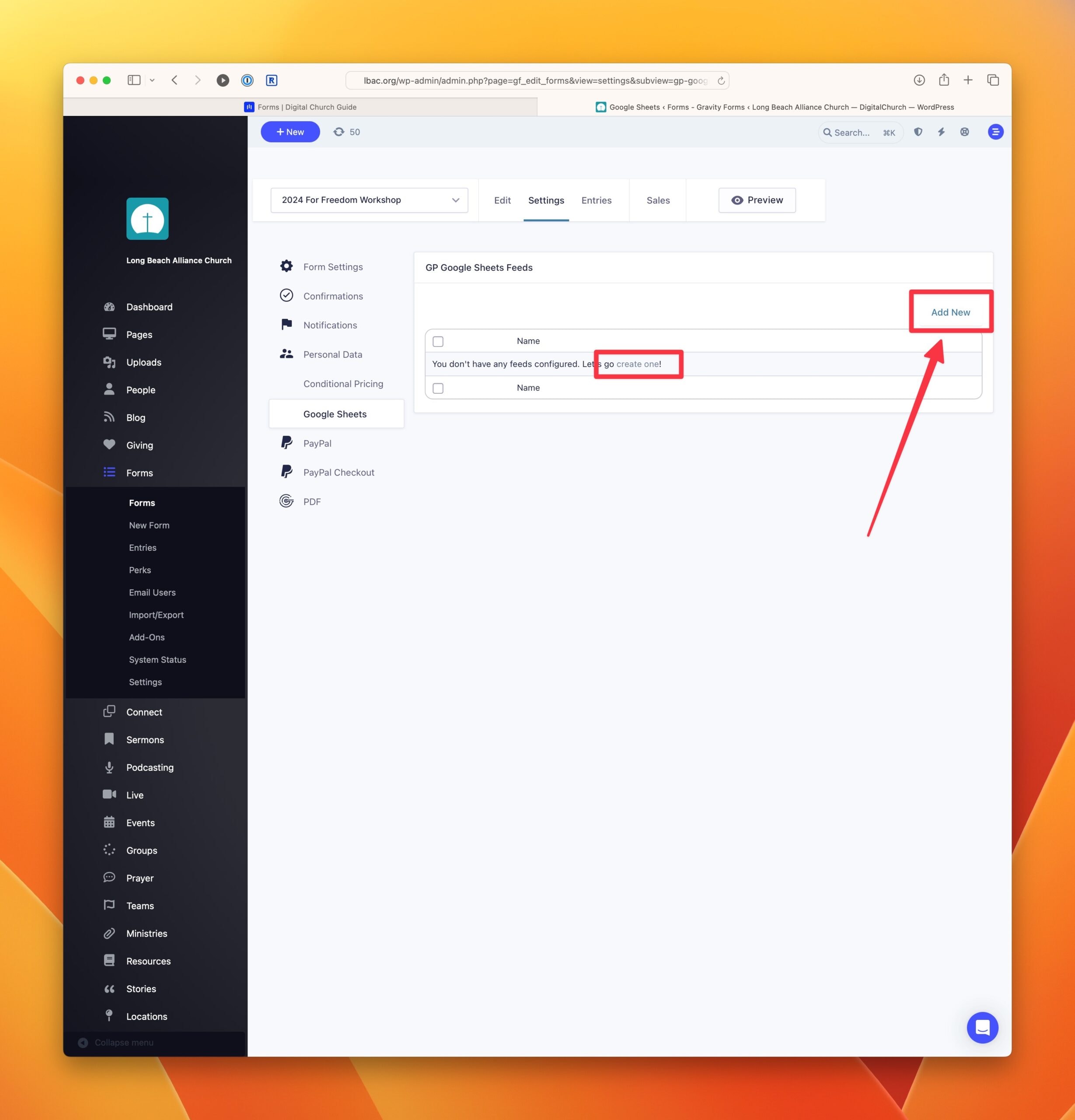
- Click on the Add New button or the create one link to create a new Google Sheets feed.
- Select the correct authorized account.
- Select Add New Spreadsheet (or connect an exisiting spreadsheet if desired).
- In the column mapping section, set up Column Headings for each value in your form.
If your form already has entries, you may want to go ahead and export the form data and import it into Google Sheets from a CSV file to get started.